

The Climb, 2XKO’s new roguelite PvE mode, landed in Patch 1.2.3 with a surprise treat for couch warriors: full duo support. That means you and a friend can team up on a single PC, lean back, and grind through adaptive bosses without ever reaching for a mouse and keyboard. But getting two controllers to play nice on PC is rarely plug‑and‑play – especially if you’re dealing with Riot’s quirky input handling. This 2XKO The Climb couch co‑op guide cuts through the chaos. If you've been searching 'how to play 2XKO couch co-op with controllers' or need a 2XKO duo mode PC guide, you're in the right place.
2XKO The Climb Couch Co‑Op Guide: Why It's a Couch Dream
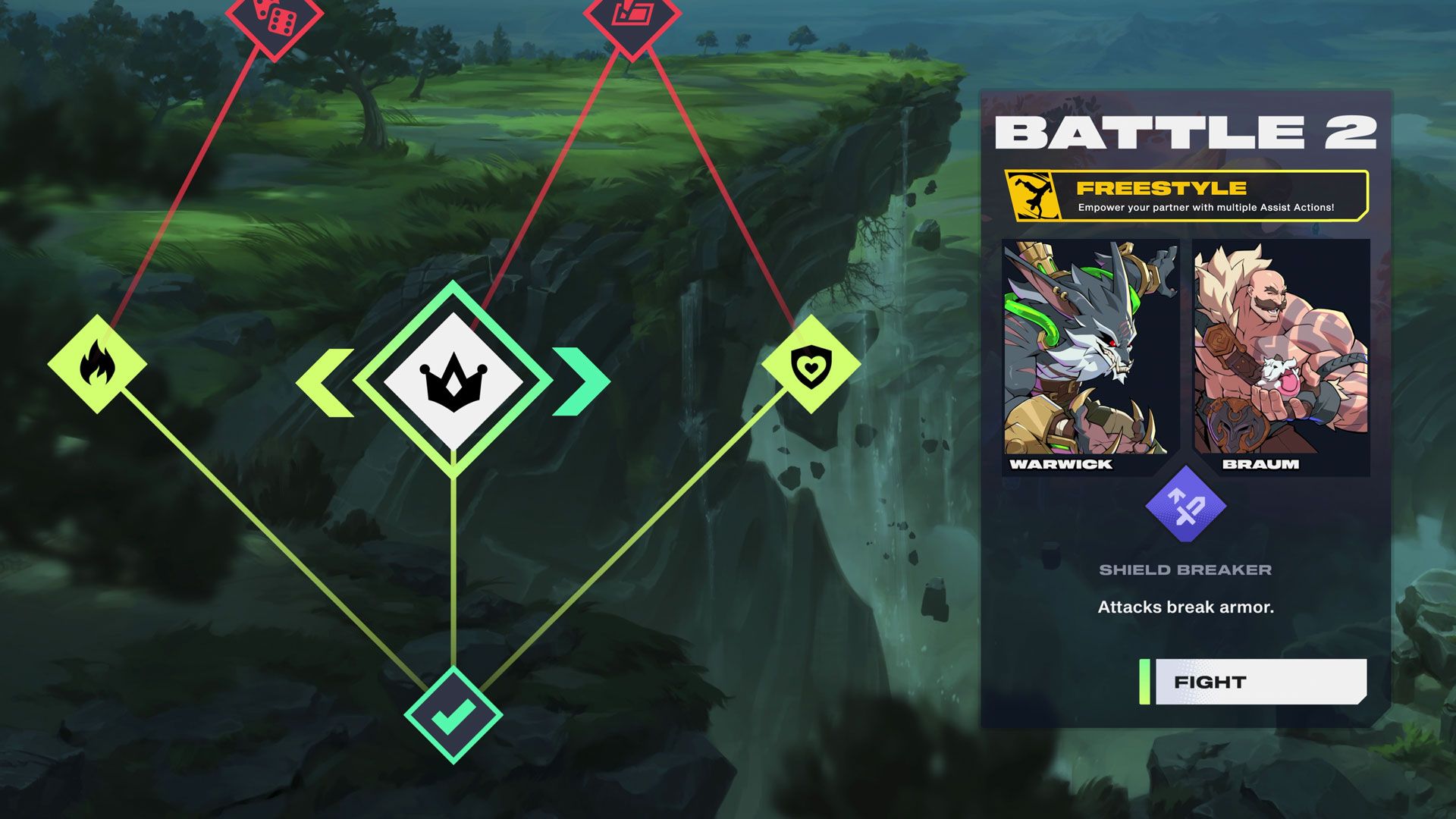
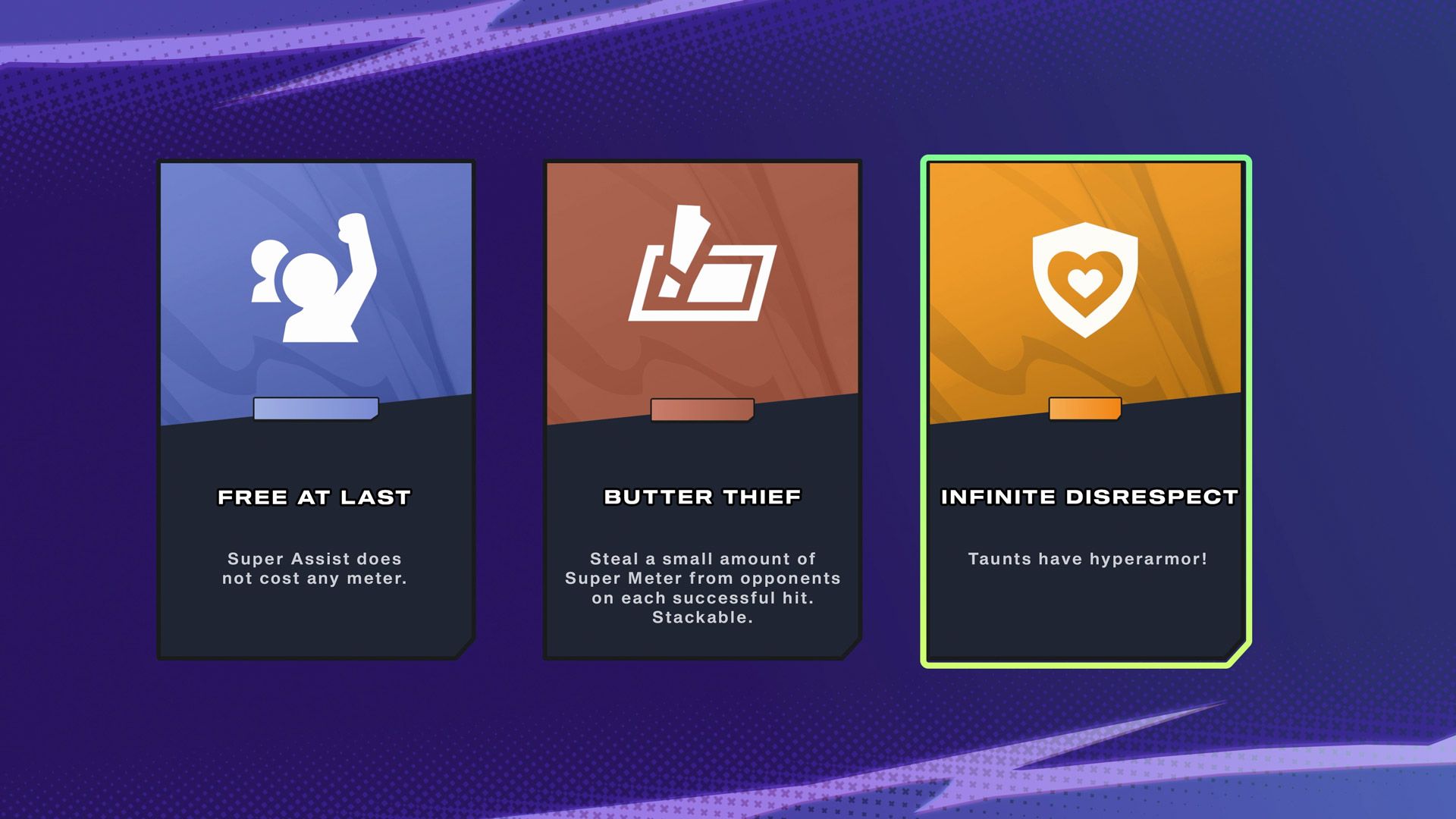
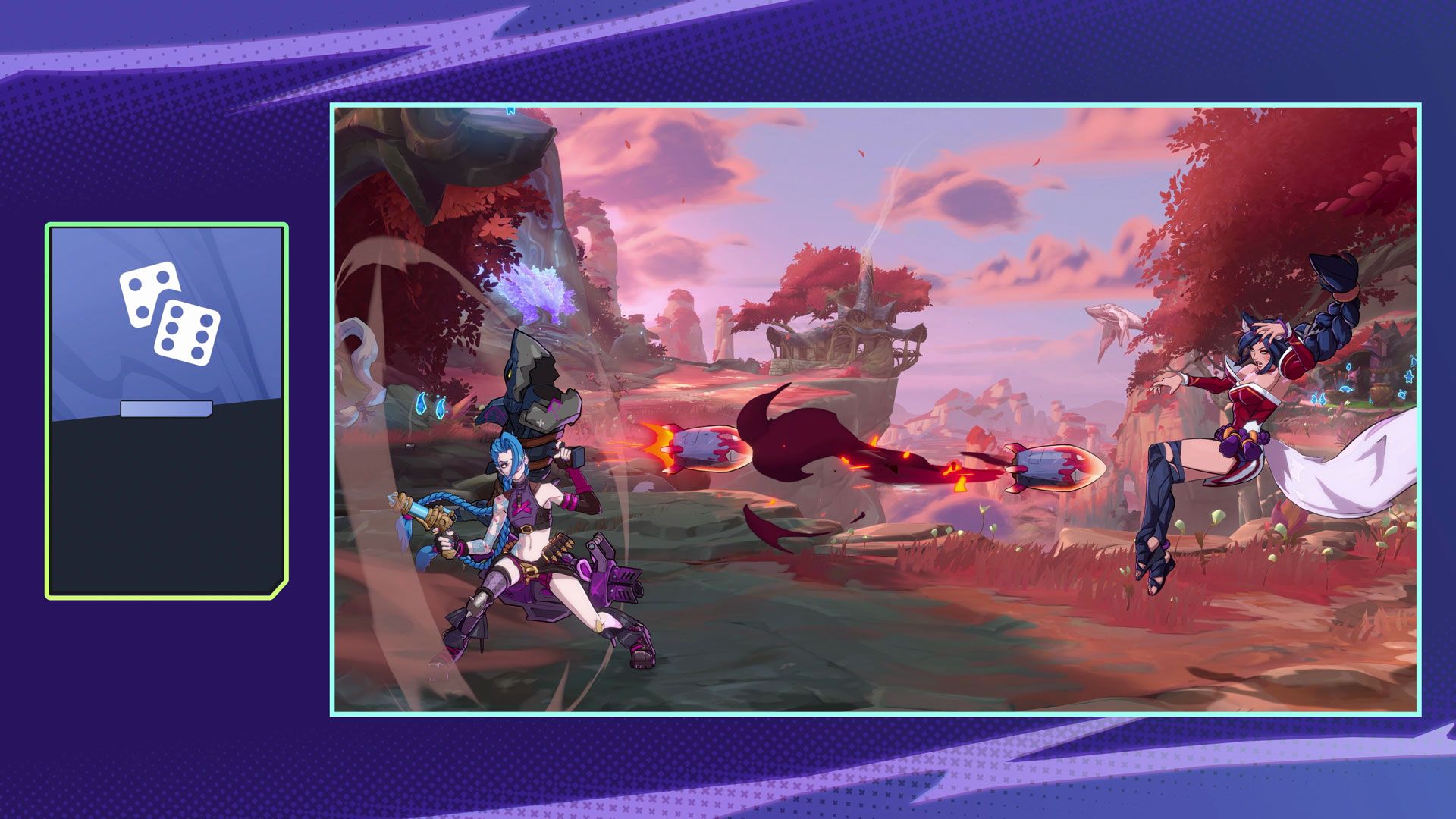
The Climb isn’t just another arcade ladder. It’s a procedurally generated gauntlet where two champions face waves of enemies, unlock augments, and tackle a final boss. During a run, you’ll clear rooms, collect buffs, and encounter rest sites where you can swap augments or heal. The procedurally chosen final boss keeps things fresh, and having a friend adds a layer of tactical synergy – one can tank while the other dishes damage, or you can stack crowd control to melt waves.
While Riot’s announcement focused on online play, the mode quietly inherits 2XKO’s Local Duo feature introduced back in Patch 1.1.5. That tech lets two players share one device – one screen, one PC – in any game mode, including The Climb. The guest player simply plugs in a controller and presses any button on the Champion Selection screen. No account, no login, no secondary launcher. It’s the closest a PC fighter has come to a true console couch session, and it’s exactly the kind of experience that makes you want to kick back in the living room.
Before You Start: Controller Compatibility & Known Conflicts
2XKO officially supports Xbox controllers (Xbox One, Series X|S, Elite) and PlayStation DualSense / DualShock 4 pads. Nintendo Switch Pro controllers, sadly, are not supported at all. If you’re using a DualSense, expect basic functionality – the touchpad click works, but adaptive triggers and advanced haptics are absent. On paper it sounds straightforward, but in practice, several gremlins love to crash the party.
When it comes to 2XKO PvE mode controller settings on PC, the game does a decent job, but pre-launch prep is crucial. Let's tackle the biggest pitfalls.
“Optical input devices (e.g., Razer Huntsman V3 Pro keyboard) can cause other connected controllers to become unresponsive.”
— Riot Games Support
Virtual joystick software (vJoy) does the same. And the biggest culprit by far is Steam Input – even if 2XKO isn’t a Steam game, having Steam running with its input mapper enabled often sends double inputs or remaps buttons into nonsense. Riot’s support page explicitly tells players to disable Steam Input or close Steam entirely when troubleshooting controller issues.
Quick Compatibility Checklist
- Xbox controllers: fully supported, plug and play.
- PlayStation controllers: supported, but limited rumble and no adaptive triggers.
- Switch Pro: not supported – use an adapter or look elsewhere.
- Optical keyboards (Razer Huntsman V3 Pro, etc.): disconnect before launching.
- vJoy virtual joystick: uninstall if present.
- Steam Input: disable or close Steam completely.
Step‑by‑Step: Setting Up Couch Co‑Op for The Climb
Let's walk through the 2XKO The Climb couch co-op setup step by step.
Step 1: Hook Up Your Controllers
Before you start 2XKO, connect both controllers via USB or Bluetooth. For the least latency, go wired. If you’re using an Xbox controller on Bluetooth, pair it in Windows Settings first. For PlayStation pads, Bluetooth works, but you may need to delete and re‑pair them if they’ve previously been connected to a console. Once connected, confirm both appear under Windows’ ‘Game Controllers’ panel (just type “Set up USB game controllers” in the Start menu). Don’t launch the game yet – there’s one critical thing to handle first.

Step 2: Kill Conflicts Before They Start
Remember those gremlins I mentioned? Let’s exorcise them now. First, unplug any optical keyboards if you own one – you can reconnect after the session. Next, open ‘Apps & features’ and uninstall vJoy Virtual Joystick if it’s listed. Finally, deal with Steam. Even if 2XKO isn’t installed through Steam, the platform’s background controller hooks can interfere. Navigate to Steam → Settings → Controller and set each controller pair to ‘Not Enabled’. Then, right‑click the Steam icon in the system tray and hit Exit. Open Task Manager (Ctrl+Shift+Esc), look for any remaining Steam processes (like “Steam Client Bootstrapper”) and end them. This sounds like a hassle, but once it’s done, 2XKO will see your controllers cleanly. Bonus: with warmUP, you won’t need to jump through these hoops again – it launches games without overlay conflicts, but more on that later.
Step 3: Launch & Invite Your Co‑Op Partner
Now fire up 2XKO. If you’re playing on keyboard as the host, there’s an extra trick: on PC, the keyboard and the first‑plugged controller are always considered Player 1. To let your friend use a controller while you use the keyboard, connect an unused controller first (it becomes the host controller, but you’ll ignore it). Then plug in the second controller that your friend will actually use. When you reach the Champion Selection screen inside The Climb, your co‑op buddy just presses any button on their controller, and they’ll drop straight in as the duo partner. No menus, no sign‑ins. Pure couch magic.
Troubleshooting: When Controllers Refuse to Cooperate
Controller Not Detected at All
If after following the steps the second controller still doesn’t show up, double‑check you haven’t left an optical keyboard or vJoy running. Also, try different USB ports – front‑panel ports sometimes don’t deliver enough power. For wireless controllers, a quick re‑pair often solves detection hiccups. If you’re on a DualSense and 2XKO ignores it, make absolutely sure no Steam process is lingering. The game relies on Windows’ raw input; any overlay can steal the signal.
Double Inputs or Mapped Wrong
This is classic Steam Input fallout. The fix is the same: close Steam, disable its controller support, and restart 2XKO. If the issue persists, check if any third‑party remapping tools like DS4Windows are active. 2XKO doesn’t need them, and they usually cause conflicts. Kill them from the system tray.
Keyboard/Controller Mix‑Ups
If your friend’s controller moves your champion instead of theirs, you’ve fallen into the Player 1 trap. Unplug all controllers, close the game, reconnect them in the correct order as described in Step 3, and relaunch. The unused‑controller trick is your friend here.
warmUP for couch players
No more reaching for the keyboard
warmUP launches 2XKO – and every other game in your library – directly from your controller. No Steam Input conflicts, no driver tinkering. Just boot, grab your pad, and play. Perfect for couch co‑op nights.
Why warmUP Completes Your Couch Setup
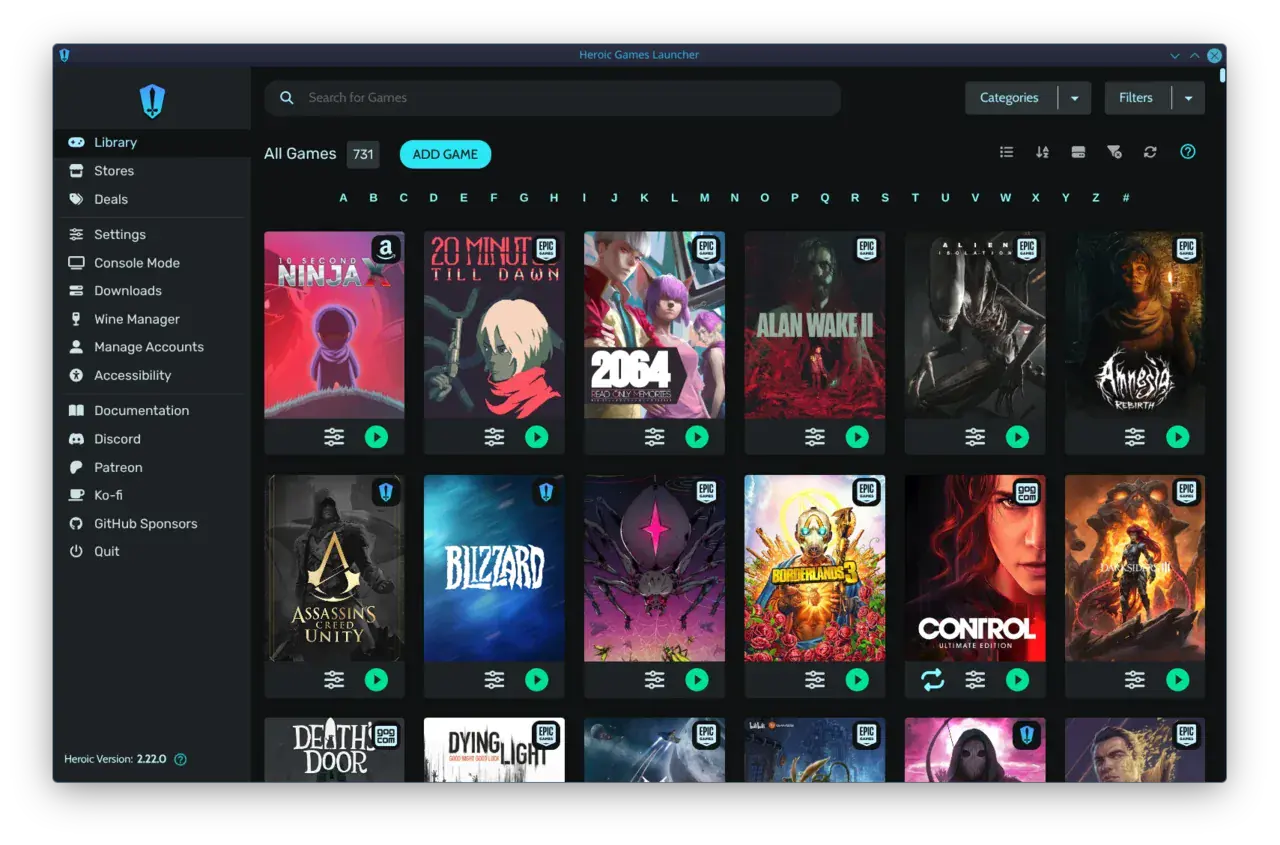
Let’s be real: even with a flawless 2XKO controller setup, PC couch gaming often devolves into a mouse‑and‑keyboard scramble before you’ve even picked a champion. warmUP is built to eliminate that. It’s a launcher designed from the ground up for TV‑and‑sofa play, with a controller‑first UI that navigates purely via gamepad. It unifies your entire library – Riot’s client, Epic, GOG, emulators, you name it – into one interface, all accessible from the couch. For a truly seamless warmup launcher 2XKO couch experience, warmUP ties everything together without the usual input clutter. And because it doesn’t hook into Steam Input or other overlay layers, you sidestep the exact controller conflicts that plague 2XKO. The moment you boot your PC, warmUP presents your game grid; you pick 2XKO with a controller, and you’re in. No keyboard ever. For anyone who treats their gaming PC like a console, it’s the missing piece.
Your Couch Co‑Op Cheat Sheet
- The Climb’s duo mode works locally thanks to 2XKO’s Local Duo tech – just plug in a controller and press a button.
- Xbox pads are plug‑and‑play; PlayStation controllers work but lack haptics; Switch Pro is unsupported.
- Disable Steam Input, unplug optical keyboards, and remove vJoy before launching.
- For keyboard‑as‑host, use the spare‑controller trick to let your friend join on pad.
- warmUP removes the remaining couch friction: zero keyboard, zero overlay conflicts, one controller‑friendly launcher.
With Patch 1.2.3, Riot handed us a stellar couch co‑op mode. The rest is up to you – and a few simple tweaks. Follow the steps above, and you’ll be brawling side‑by‑side in The Climb without a mouse in sight. And if you’re tired of sprinting to the keyboard every time you swap games, join the warmUP waitlist. It turns your gaming PC into the console it was always meant to be.
Written by
Mika Lindqvist
Hardware & Performance
Mika benchmarks everything that runs a game — from handhelds to living-room rigs. If a frame drops, he wants to know why.
Comments(0)
No comments yet. Be the first to share your thoughts.