

The record-breaking trailer for Spyro: A Realm Beyond has kicked off a massive retro replay wave, and now every couch PC gamer is hunting for a flawless classic Spyro PC couch controller setup. Sounds simple, but the gap between having ROMs and a PC connected to your TV and actually playing Spyro from the sofa is packed with controller-configuration nightmares—manual mappings, driver conflicts, launcher-hopping, and the eternal question “why is Player 2 controlling Spyro?”
The Couch Emulation Minefield: Why Classic Spyro Couch Play Still Hurts
Emulating a PS1 game on a dedicated workstation is straightforward. Doing the same on a Windows PC plugged into a living‑room TV — without a keyboard and mouse — is a completely different beast. The most common pain points aren’t about the emulator’s ability to run Spyro; it’s about the joypad itself. RetroArch can auto‑configure an Xbox controller in seconds, but if you plug in a generic USB pad, a PlayStation DualSense, or even a wired fight stick, you’ll be staring at a dimly‑lit config screen wondering why the right trigger is mapped to the A button.
“RetroArch's autoconfig is great when it works, but if you have a generic SNES USB controller, you're on your own and have to map everything manually.”
— Reddit r/emulation
That’s just the first hurdle. Once a pad is recognized, getting two or more controllers into the right player order often requires navigating a menu system that was never designed for a gamepad. The Quick Menu overlay offers some help, but on a Windows couch PC you’ll likely be leaning forward to grab the wireless keyboard just to swap Player 1 and Player 2. And if you’re mixing a Steam Deck‑style setup where Steam Input intercepts everything, you might find that your controller’s gyro or extra buttons don’t pass through to the emulator at all. All of this is before you’ve even launched Spyro — and you still have to manage multiple launchers just to move between Steam, RetroArch, and a standalone emulator like DuckStation.
“The dream is one app that launches everything. I hate having to get up and use the mouse to switch from Steam to Dolphin.”
— Reddit r/pcgaming
RetroArch: The Go-To Emulator Frontend and Its Controller Quirks
RetroArch is the undisputed heavyweight of multi‑system emulation. It bundles dozens of cores under one roof, including Beetle PSX and PCSX ReARMed that eat PS1 Spyro discs or ROM images for breakfast. The team even built an auto‑configuration database that detects many popular gamepads and loads pre‑made button maps. For a standard Xbox Wireless Controller, you really can plug it in and start playing — until you need to access the emulator’s own menus, at which point you discover that not every part of the interface is controller‑friendly.
The trouble escalates quickly for couch setups. If RetroArch doesn’t recognise a controller, the official fix is to navigate to Settings > Input > RetroPad Binds and press each button manually when prompted. That’s a few minutes of work on a monitor, but from a distance on a TV those tiny UI prompts are nearly illegible. Worse, the process must be repeated per‑core unless you save a global profile — something a first‑time user won’t know exists. Add in the need to manually scan ROM directories, download cores from the online updater, and set up per‑game overrides for resolution or aspect ratio, and you’ve suddenly traded “boot‑to‑play” for a half‑hour chore before you can even charge the first sheep.
How to Nail Your Classic Spyro PC Couch Controller Setup with RetroArch
If you’re set on using the original Spyro ISOs or ROMs — maybe you crave that crisp PS1 rendering or the specific soundtrack — there is a reliable path through the maze. The three core problems you’ll hit are an unrecognised gamepad, wrong controller player numbers when you sit down with a friend, and Steam Input blocking native features. The good news: every one has a step‑by‑step fix that you can apply today.
Step‑by‑Step Couch Fixes for RetroArch
- Manual controller mapping: Navigate to Settings > Input > RetroPad Binds > Port 1 Controls, select ‘Set All Controls,’ and press the corresponding physical button for each on‑screen prompt. Afterwards, always choose ‘Save Controller Profile’ to preserve your work.
- Fixing multiplayer controller order: If player numbers are scrambled, press your external controller’s Quick Access button, open the Settings gear in the Steam Deck’s overlay, scroll down to ‘Rearrange controller order,’ and swap the external controller to the top position. On Windows, use the RetroArch Quick Menu > Controls > Port 1 Controls and manually reassign device indices.
- Allowing native controller features (gyro, etc.): In Steam, find your RetroArch shortcut, click the Controller icon, select your controller tab, and choose ‘Disable Steam Input’ from the Gear menu next to ‘Edit Layout.’ Restart RetroArch to let raw inputs pass through.
These fixes will get you playing, but they demand that you remember arcane menus and keep a mouse within reach. They also don’t solve the bigger annoyance: after you finish Spyro, you still have to switch to a different launcher to play the Reignited Trilogy you bought on Steam, because RetroArch is a world unto itself.
Alternatives for Playing Spyro on the Couch: EmuDeck, Playnite, and the Reignited Shortcut
EmuDeck set a new standard by scripting an entire emulation suite that works brilliantly on SteamOS. It pre‑configures RetroArch, Dolphin, PCSX2, and a dozen other emulators with sensible controller bindings and hotkeys. On a Steam Deck, you can be playing Spyro in under half an hour. Try to replicate that magic on a Windows‑based couch PC, however, and the story changes: you’ll still need to manually rearrange controller order, disable Steam Input for gyro‑capable pads, and wrestle with the fact that EmuDeck was built for the Deck’s integrated controls, not a living‑room PC with a random mix of wireless gamepads.
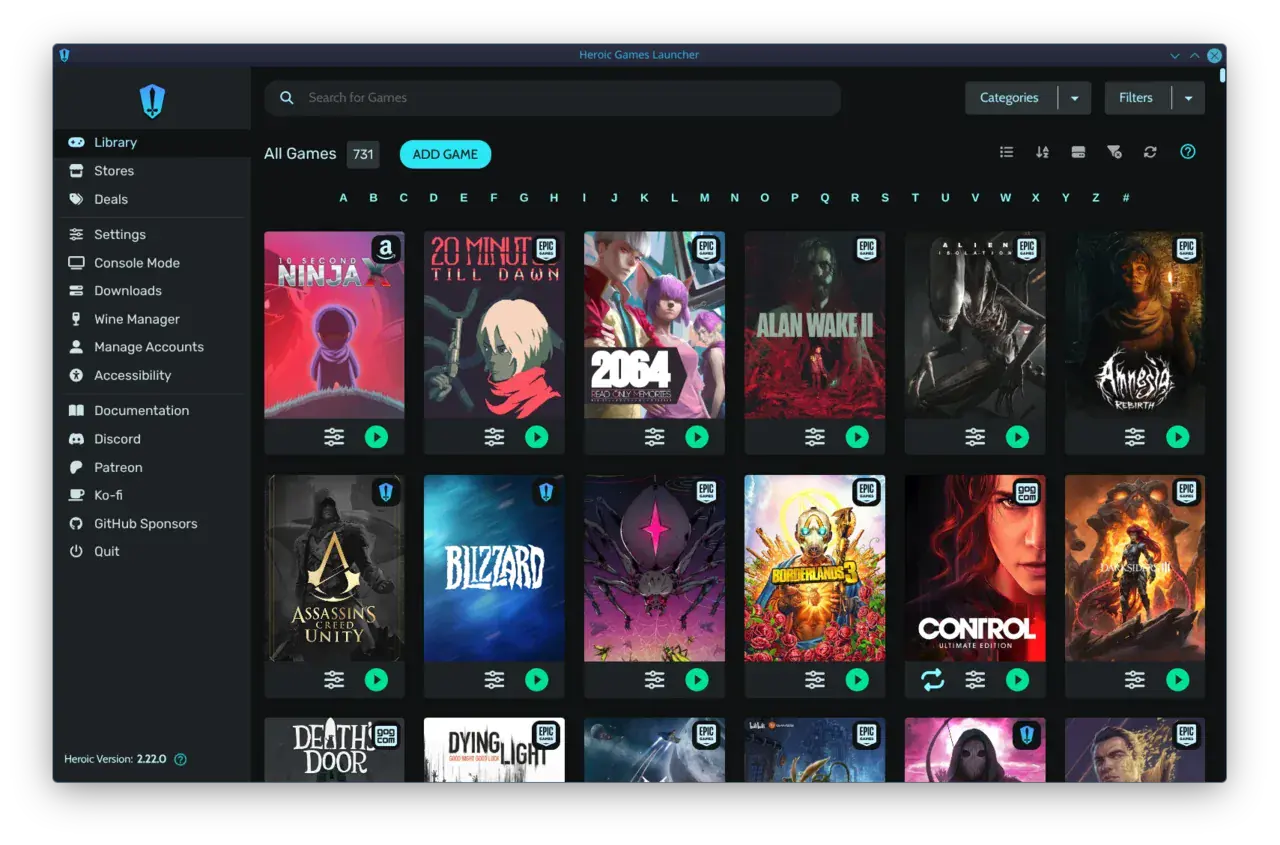
Playnite offers a genuine universal library manager with a full‑screen ‘Couch Mode.’ It can launch both your Steam copy of Spyro Reignited and your RetroArch instance, gathering everything into one view. The catch is that Playnite’s controller navigation isn’t as fluid as a real console UI, and you must manually configure paths, arguments, and per‑emulator settings. Getting it to a point where you never need a mouse is a multi‑hour project.
Then there’s the simplest route: the Spyro Reignited Trilogy on Steam or GOG. It’s a modern PC port that detects Xbox, PlayStation, and Switch Pro controllers natively, requires zero emulation knowledge, and runs at high framerates on modest hardware. The downside? Purists will tell you it’s not the original game — physics tweaks, remastered music, and a slightly different feel. If you’re chasing 1998 nostalgia, Reignited is a different experience entirely.
Spyro Couch Setup Showdown
| RetroArchPowerful but fiddly | EmuDeckDeck-optimized, Windows afterthought | PlayniteUnifier with manual overhead | warmUPtrophyZero-config couch-first launcher | |
|---|---|---|---|---|
| Setup Time | ~30 min per core | ~20 min (SteamOS) | ~1 hour per emulator | < 1 min |
| Controller Auto-Config | partial (common controllers) | check_circle | cancel | check_circle |
| Couch-Native Navigation | limited menu access | via Steam | Couch Mode but clunky | check_circle |
| Library Unification | emulators only | cancel | check_circle | check_circle |
| Zero Emulator Know-How Needed | cancel | cancel | cancel | check_circle |
The Zero-Config Future: warmUP and the End of Controller Hell
Every existing solution forces you to choose between deep configuration freedom and genuine couch comfort. warmUP was built to remove that choice entirely. It’s a PC game launcher that works like a console: turn on your TV, pick up your controller, and your entire library — Steam, Epic, GOG, emulators — is right there, browsable with a gamepad. The same vision that makes EmuDeck magical on SteamOS arrives on Windows without the multi‑hour tinkering, because warmUP detects your games and your controllers automatically, with no remapping required.
For classic Spyro, that means zero‑config emulation. Add your Spyro ROM folder to warmUP, and it’s added to the unified library alongside your Steam copy of Reignited if you have it. No separate RetroArch configuration, no per‑core control saving, no swapping launchers with a mouse. The controller‑first UI lets you launch a PS1 classic just as easily as a modern AAA title, and it handles multiplayer ordering behind the scenes. It’s the “one app that launches everything” dream the couch‑gaming community has been asking for, now in pre‑launch.
Tired of tinkering?
Bring Classic Spyro to Your Couch Without the Fuss
warmUP’s zero‑config emulation and controller‑first design mean you can jump straight into the Dragon Realms from your sofa. No manual mapping, no launcher‑hopping. Just the games you love, as they should be played.
Final Takeaways: Play Spyro Tonight, Plan for Couch Simplicity Tomorrow
The retro Spyro revival is too good to spend in a config screen. If you’re a purist, the manual RetroArch fixes in this guide will get you flying through Artisans by the end of the evening — just keep a wireless keyboard nearby. Casual fans will be happiest with Spyro Reignited on Steam, where the only setup is hitting Install. But if you’re building a long‑term living‑room PC that can handle every game you own without the ritual of swapping apps and re‑mapping buttons, warmUP is the piece that’s been missing. Pre‑launch waitlist sign‑ups are live now, and when it lands, the days of “controller hell” will finally be over.
Your Spyro Couch Game Plan
- For purists: Follow our RetroArch manual mapping steps and disable Steam Input to get classic Spyro running on the couch tonight.
- For simplicity: Grab Spyro Reignited Trilogy on Steam or GOG — native controller support, zero emulator hassle.
- For the future: Join warmUP’s waitlist to unify your entire library with zero‑config couch play, so your next retro replay is a one‑button affair.
Written by
Mika Lindqvist
Hardware & Performance
Mika benchmarks everything that runs a game — from handhelds to living-room rigs. If a frame drops, he wants to know why.
Comments
Loading comments…