

The Xbox Games Showcase 2026 just confirmed what many of us were hoping: Gears of War: E-Day arrives on PC and Xbox October 6, 2026, and the Fable reboot lands February 23, 2027. Both are day-one PC releases, and both are the kind of cinematic, controller-in-hand experiences that deserve a big screen and a couch, not a hunched-over desk setup. If you've ever dreamed of a living-room PC that boots straight into your game library like a console, this is the perfect moment to build a couch PC for Gears E-Day. This guide will walk you through the hardware, the software, and the one missing piece that finally ties it all together.
Why a Couch PC Makes Sense in 2026
Modern TVs have caught up. A 4K OLED with 120 Hz, VRR, and HDMI 2.1 can deliver a gaming experience that rivals any high-end monitor, and when you're sinking into a sofa instead of an aggressively ugly gaming chair, the difference is transformative. As one reviewer put it, "once you've experienced a properly configured gaming rig pumping pixels through a next-generation OLED from the comfort of a proper sofa, you will look at that spindly desk ... and ask yourself some very serious questions about the choices that led you there."
“once you've experienced a properly configured gaming rig pumping pixels through a next-generation OLED from the comfort of a proper sofa, you will look at that spindly desk and that aggressively ugly gaming chair with the go-faster stripes and ask yourself some very serious questions about the choices that led you there.”
— PC Zone, 'PC Gaming on TV Guide'
The hardware has also shrunk. Mini-ITX cases now pack full-size GPUs into volumes smaller than a console, and wireless peripherals have finally closed the latency gap. Add the fact that Xbox Play Anywhere titles like Fable and Gears E-Day let you carry progress between Xbox and PC, and a couch PC stops being a niche experiment—it becomes the best of both worlds.
Build a Couch PC for Gears E-Day: Hardware Essentials
Building a PC that looks at home under your TV and plays nice with controllers isn't just about picking the fastest parts. It's about choosing components that fit the form factor, stay quiet, and integrate with your living-room ecosystem.
Core Hardware Picks for a 2026 Couch PC
- Case: Fractal Design Terra (under 20L, GPU up to 330 mm) or Lian Li A4-H2O (11L, 280 mm AIO) for a true console footprint. Cooler Master NR200P is a roomier alternative with tool‑free panels.
- TV: 4K 120 Hz with VRR and FreeSync/G‑Sync. Without these, input lag can hit 20–100 ms, making even Gears feel sluggish.
- HDMI cable: Certified Ultra High Speed HDMI 2.1 (48 Gbps) – non‑negotiable for 4K/120 with HDR.
- Controllers: 8BitDo Ultimate 2C or Xbox Wireless Controller with the official Xbox Wireless Adapter for sub‑10 ms latency. Avoid standard Bluetooth for competitive shooters.
- Wireless keyboard/mouse: A compact combo like the Logitech K400 Plus for the rare desktop moments – "the upgrade that transforms the sofa gaming experience from 'workable' to 'actually rather pleasant'."
- HDMI‑CEC adapter: Enables automatic TV input switching and power control, so your PC feels like a native living‑room device.
For Gears of War: E-Day specifically, the recommended specs call for an RTX 5060 or RX 6700 XT and a Ryzen 5 5600 or i5-11600K with 16 GB RAM. That's a solid 1440p/120 fps or 4K/60 fps target, and it fits comfortably in a mini‑ITX build with a 600W SFX power supply. The 130 GB SSD requirement means a 1 TB NVMe drive is the sweet spot.
The Software Problem: Fragmented Launchers on a TV
Even with perfect hardware, the moment you sit on the couch and stare at a Windows desktop, the illusion shatters. You need a launcher that aggregates your entire library—Steam, Epic, GOG, Game Pass—and lets you navigate it with a controller. The good news: several tools exist. The bad news: most still force you to grab a keyboard at some point.
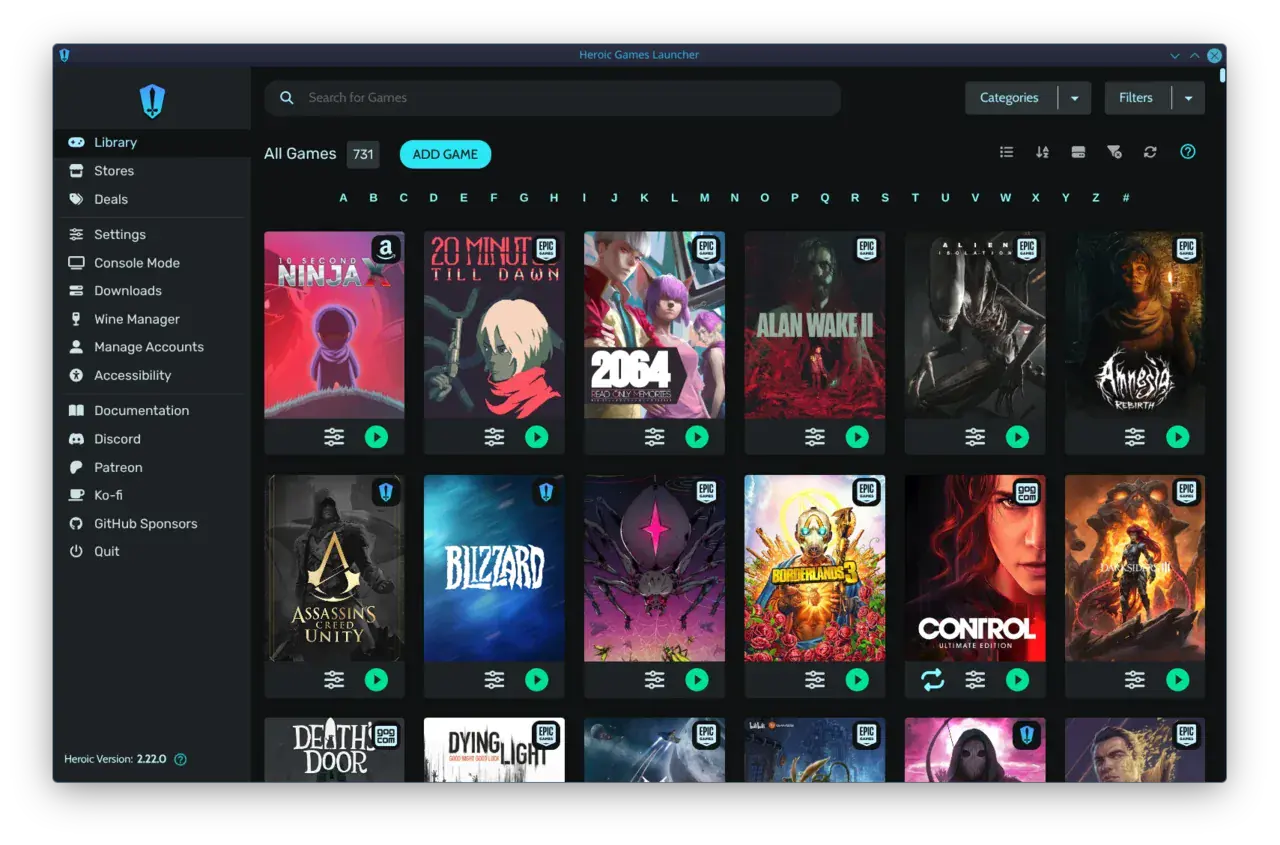
Steam Big Picture Mode is the gold standard for controller navigation and overlay support, but it doesn't natively pull in games from other stores. Playnite unifies everything and can boot straight into a full‑screen, controller‑friendly interface, yet it still launches other store clients in the background and requires initial setup. GOG Galaxy 2.0 offers basic controller support but often falls back to keyboard/mouse. Launchbox excels at emulators but adds complexity. And none of them deliver a truly zero‑setup, console‑like "boot to play" experience out of the box.
Couch Launcher Showdown
| Steam Big PictureValve's controller‑first interface | PlayniteOpen‑source library unifier | GOG Galaxy 2.0CD Projekt's aggregator | LaunchboxEmulation & PC frontend | warmUPtrophyZero‑setup couch launcher (coming soon) | |
|---|---|---|---|---|---|
| Controller navigation | true | true | true | true | true |
| Unified multi‑store library | false | true | true | true | true |
| Boots directly to fullscreen | true | true | false | true | true |
| Zero setup required | false | false | false | false | true |
| Emulator integration | false | false | false | true | true |
Notice the gap: every existing solution demands at least some tinkering—adding non‑Steam shortcuts, configuring plugins, or wrestling with desktop pop‑ups. That's where warmUP comes in. Built from the ground up for the couch, it unifies your Steam, Epic, GOG, and emulator libraries automatically, boots straight into a controller‑first UI, and requires zero configuration. It's not yet available, but you can join the waitlist to be among the first to try it.
Step‑by‑Step: Setting Up Your Couch PC for Controller‑First Gaming
While warmUP will eventually make this process effortless, here's how to get a console‑like experience today using existing tools—and how to eliminate the most common pain points.
Quick‑Start Couch PC Setup
- 1. Install Playnite and add your store accounts (Steam, Epic, GOG, etc.) via the plugins menu. Enable 'Fullscreen' mode and set it to launch with Windows. This gives you a unified, controller‑navigable library from the moment you power on.
- 2. For Steam‑only users, configure Big Picture to start automatically: Steam > Settings > Interface > 'Start Steam in Big Picture Mode'. To bypass the desktop entirely, replace the Windows shell with Steam (advanced) or use Playnite's fullscreen auto‑start.
- 3. Connect controllers via 2.4 GHz dongles, not Bluetooth. The Xbox Wireless Adapter supports up to 8 controllers with near‑zero latency. For 8BitDo Ultimate 2C, use the included 2.4 GHz receiver—it also supports USB wake, so tapping the controller powers on the PC.
- 4. Add an HDMI‑CEC adapter (like the Pulse Eight) to automatically switch your TV to the correct input and control volume via your TV remote. Pair it with a wireless keyboard tucked away for the rare driver update or launcher login.
- 5. In Windows, disable login password and enable auto‑login to skip the lock screen. Set power settings to never sleep, and configure your TV to turn off after inactivity instead.
With these steps, you'll land in a full‑screen game library seconds after pressing the power button, and you'll navigate everything with a controller. The only remaining friction? That initial setup and the occasional need to jump between launchers when a game demands it. warmUP is designed to remove even those last hurdles.
The Missing Piece
Love your PC rig? Bring it to the couch.
You've built the ultimate living‑room PC. Now make it truly console‑like with warmUP — the launcher that unifies your Steam, Epic, GOG, and emulator libraries, boots straight to a controller‑friendly interface, and requires zero tinkering. No plugins, no desktop pop‑ups, no keyboard. Just your games, your controller, and your couch. Join the waitlist to be first in line when warmUP launches.
Gears of War: E‑Day System Requirements and Build Recommendations
The official specs for Gears of War: E‑Day give us a clear target. Minimum: RTX 2060 / RX 6600 / Intel A580, Ryzen 5 2600X / i7-6850K / i5-10400, 12 GB RAM, 130 GB SSD. Recommended: RTX 5060 / RTX 3060 Ti / RX 6700 XT / RX 9060 XT / Intel ARC B580, Ryzen 5 5600 / i5-11600K, 16 GB RAM. That recommended tier is the sweet spot for a couch PC—it'll push 1440p at high refresh rates or 4K at 60 fps with DLSS/FSR, and it fits in a compact case without melting your entertainment center.
For Fable, no PC requirements have been announced yet, but given the visual showcase at the Xbox Games Showcase, expect a similar or slightly higher GPU demand. A build centered on an RTX 5060 or RX 9060 XT today will almost certainly handle both games beautifully, and the AM5 platform (Ryzen 5 7600, B650I motherboard) leaves an upgrade path for years.
Final Takeaways: Your Couch PC Action Plan
What to Do Next
- Pick a mini‑ITX case that matches your living‑room aesthetic and fits a modern GPU.
- Invest in a 4K 120 Hz TV with VRR and a certified HDMI 2.1 cable — this is the single biggest upgrade for couch gaming.
- Use 2.4 GHz wireless adapters for controllers to eliminate Bluetooth latency.
- Set up Playnite or Steam Big Picture to auto‑boot into a controller‑first interface, and add an HDMI‑CEC adapter for seamless TV integration.
- Join the warmUP waitlist to get a zero‑setup, all‑in‑one launcher that finally makes your couch PC feel like a true console.
The Xbox Games Showcase 2026 gave us a lineup that screams 'play me on the big screen.' With the right hardware and a launcher that doesn't fight you, your living‑room PC can deliver an experience that leaves consoles looking over their shoulder. Gears E‑Day drops October 6—plenty of time to build your rig and be ready.
Written by
Mika Lindqvist
Hardware & Performance
Mika benchmarks everything that runs a game — from handhelds to living-room rigs. If a frame drops, he wants to know why.
Comments(0)
No comments yet. Be the first to share your thoughts.